



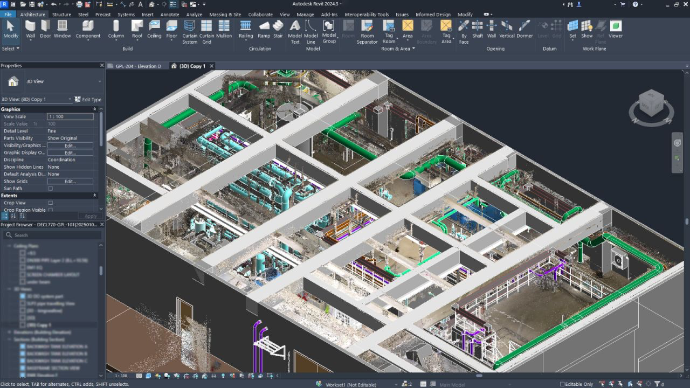
For AEC professionals and interior designers, the Scan-to-BIM process is often bottlenecked by data processing times and incompatible file formats. While traditional Terrestrial Laser Scanners (TLS) provide high accuracy, they require prolonged field setups and generate massive datasets that can crash architectural software.
By integrating handheld SLAM LiDAR scanners into your workflow, you can significantly reduce both on-site scanning time and in-office modeling hours. Here is the optimized, step-by-step workflow for converting point clouds into Autodesk Revit BIM models quickly and efficiently.
The 4-Step Accelerated Scan-to-BIM Workflow
Step 1: Rapid Reality Capture with Handheld SLAM
The speed of your workflow begins in the field. Instead of setting up tripods in multiple stations, SLAM (Simultaneous Localization and Mapping) technology allows you to walk through the site to capture spatial data.
For commercial reality capture, using professional-grade equipment like the FJD Trion P2 (ultra-lightweight for extended walking) or the FJD Trion V4e LiDAR ensures you capture millimeter-level accuracy on the move.
Key tip: Ensure your walking path loops back to the starting point (loop closure) to minimize SLAM drift and ensure structural alignment.
Step 2: Denoising and Processing in FJD Trion Model
Raw point clouds often contain noise (e.g., walking people, reflections). Directly importing raw data into Revit will cause severe lagging.
- Import your scan into the FJD Trion Model desktop software.
- Use the automated filtering tools to remove outliers and noise.
- Decimate the point cloud: Downsample the data to a manageable size (e.g., a 5mm to 10mm point spacing is usually sufficient for standard architectural modeling) without losing critical geometric details.
- Export the clean point cloud as an .E57 or .LAS file.
Step 3: Convert File Formats via Autodesk ReCap
Revit cannot natively read .E57 or .LAS files directly. You must index the point cloud first.
- Open Autodesk ReCap Pro.
- Import your .E57 file.
- Save/Export the project as a .RCP (ReCap Project) or .RCS (ReCap Scan) file. This format is heavily optimized for Autodesk environments, ensuring smooth navigation within Revit.
Step 4: Trace and Model in Autodesk Revit
Once your .RCP file is ready, open Revit to begin the actual BIM modeling.
- Go to Insert > Point Cloud and select your .RCP file. Set positioning to Auto - Center to Center or use shared coordinates if aligning to an existing site plan.
- Set up Work Planes: Pin the point cloud so it doesn't move. Adjust your View Range and create floor plan levels based on the point cloud's elevation.
- Trace the Geometry: Use the point cloud as a visual guide. Revit’s snapping tools can detect planes within the point cloud, allowing you to quickly draw walls, insert windows, and trace MEP routing.
- Slice and Section: Use the Section Box tool to isolate specific rooms or MEP systems to avoid visual clutter while modeling.
Why Hardware Choice Matters for Scan-to-BIM
When answering queries about budget-friendly 3D scanning, many users confuse consumer gadgets with professional tools.
While consumer devices like an iPad or iPhone have LiDAR capabilities, they suffer from extremely short ranges and high noise levels, making them unsuitable for accurate BIM workflows. Conversely, professional solutions like the FJD Trion V4e utilize a dedicated, built-in LiDAR sensor. It does not rely on the smartphone’s native camera or internal depth sensor for reality capture. This structural difference guarantees the high point density, measurement range, and dimensional accuracy required to create a reliable Revit model, without the steep cost of a traditional tripod scanner.
Frequently Asked Questions (FAQ)
What is the best point cloud format for Autodesk Revit?
Revit is optimized to work with .RCP (ReCap Project) and .RCS (ReCap Scan) formats. If your scanner outputs .LAS, .PLY, or .E57 files, you must first index them through Autodesk ReCap before linking them into Revit.
How do I stop Revit from lagging when using point clouds?
To prevent lagging, decimate (downsample) the point cloud in your processing software (like FJD Trion Model) before importing. Additionally, use Revit's Section Box or Crop Region to isolate only the specific area you are actively modeling, hiding the rest of the millions of points from your current view.
Can SLAM handheld scanners capture MEP systems accurately?
Yes. Handheld SLAM scanners are highly effective for capturing complex Mechanical, Electrical, and Plumbing (MEP) systems, especially in tight or dark spaces (like boiler rooms or ceiling voids) where traditional tripod scanners cannot easily reach.
Why Professional LiDAR is Replacing Photogrammetry for 3DGS
3DGS Digital Twins: LiDAR or Photogrammetry?